 SENDO
SENDO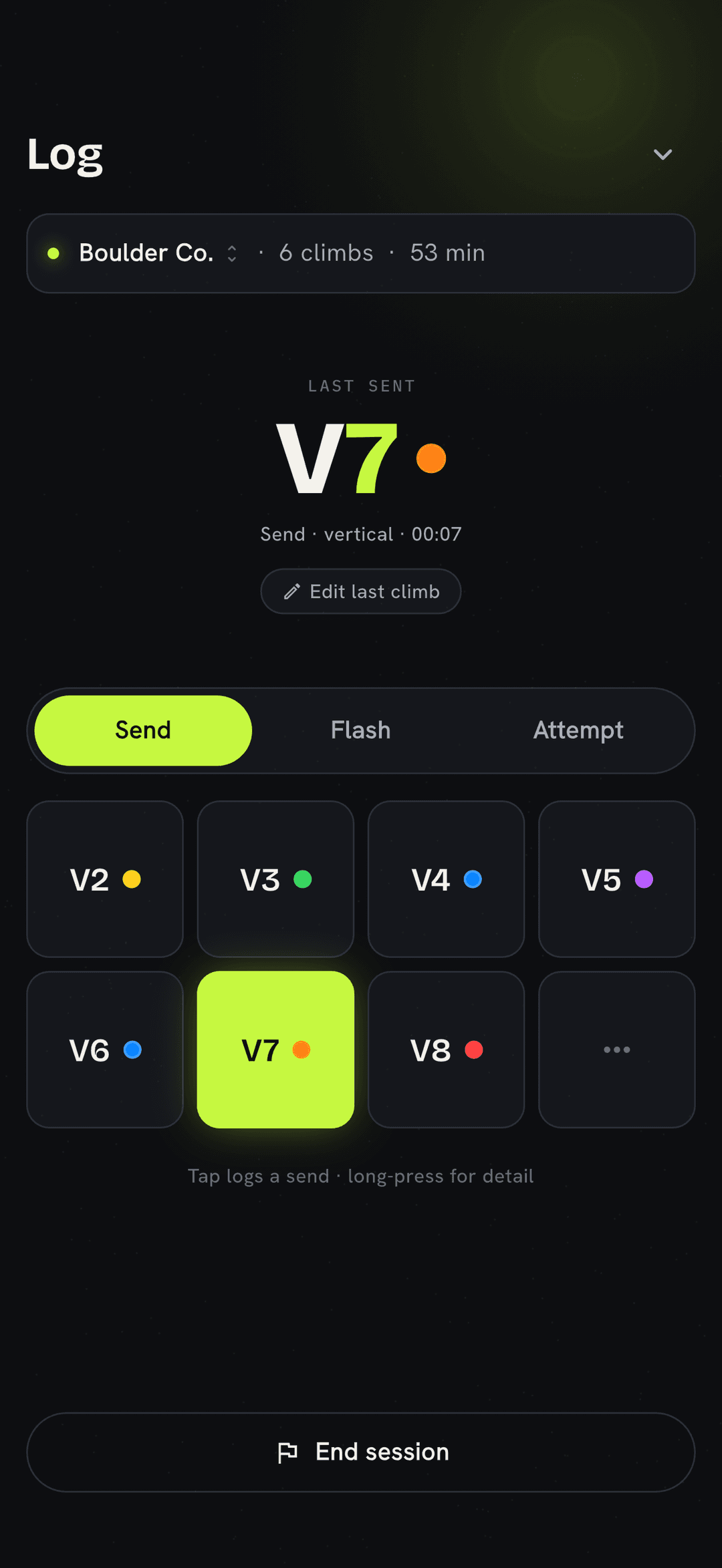
The whole point of SENDO is that logging a climb shouldn’t pull you out of your session. No forms, no menus, no typing with chalky thumbs; you tap the grade, pick the outcome, and you’re back on the mat. Here’s the full flow.
Open the quick logger
The logger is the home screen. It’s a grade pad sized for one-handed use: every grade your gym sets is a button. Tap the grade you climbed and the entry is half done before you’ve thought about it.
Setting in Fontainebleau? Japanese kyu? SENDO logs in whatever system your gym uses and normalizes everything behind the scenes, so your stats stay comparable across gyms.
Pick the outcome
Every climb is one of three things. One gesture each, no sub-menus:
- 1Flash
You sent it first try, with beta (you’d watched someone or been told the moves). The cleanest tick there is.
- 2Send
You climbed it cleanly from start to finish, just not first go. The bread and butter of a session.
- 3Attempt
A try that didn’t top out. Logging attempts is how a project’s progress shows up later in your history.
Tweak the last one, without leaving the logger
Logged a send but meant to mark it an attempt? Tapped V5 when it was V4? Your most recent entry stays editable right there on the logger. Fix the grade or the outcome inline and keep going, no digging through history mid-session.
Long-press for the full picture
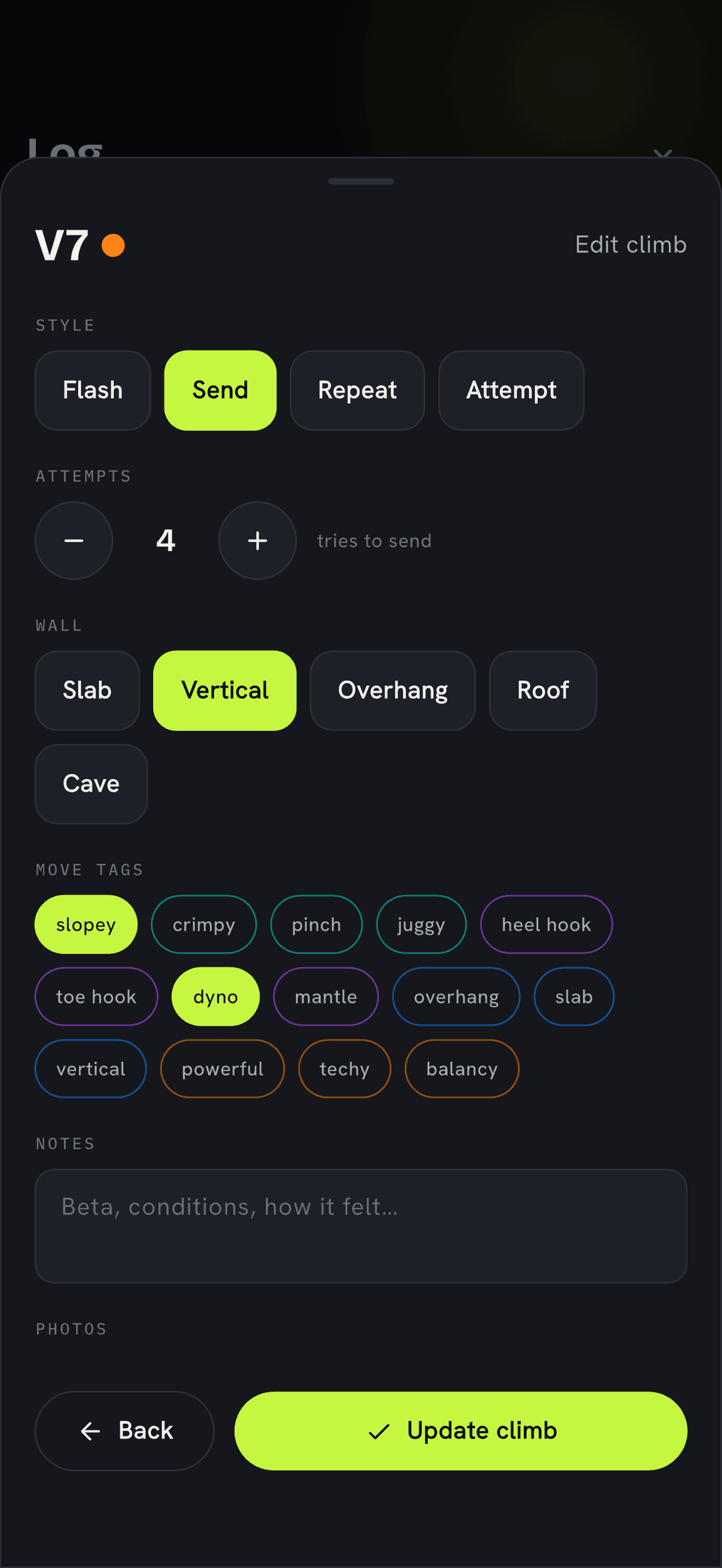
A tap logs the send and gets you back on the wall, but when a climb earns more detail, long-press the grade (or tap Edit last climb) to open the full entry. Set the style and number of attempts, the wall angle, and tag the moves (crimpy, dyno, heel hook), then add a note or a route photo. All optional; the quick tap is always enough on its own.
It’s already saved, offline
Basement gyms and concrete walls kill your signal, not your log. Every entry lands in a local database on your phone first, instantly. If you’re signed in, it syncs up whenever you’re back on a connection, but the record is yours the moment you tap.
Find it later in History
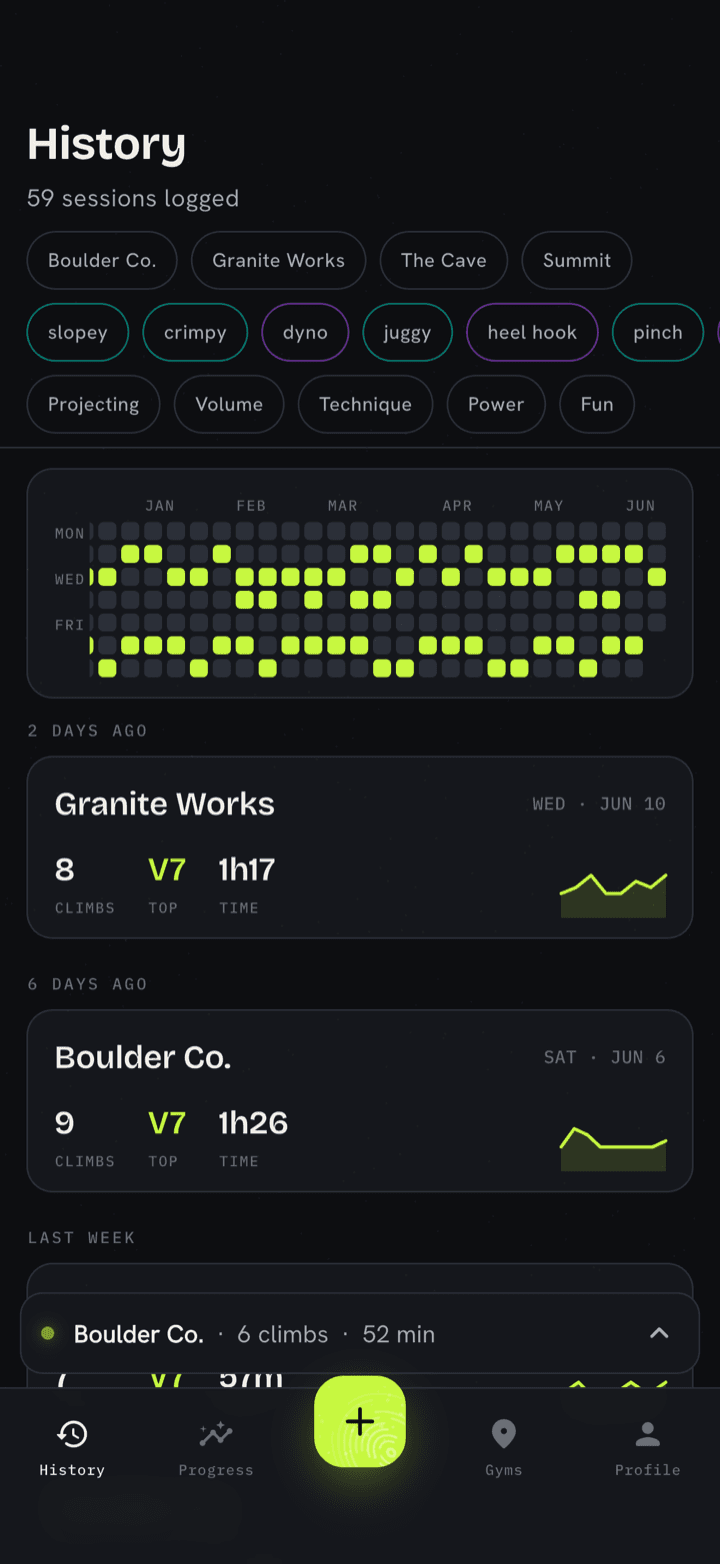
Every entry rolls up into History: your logbook, newest first and grouped by session. Each session shows what you climbed, the grades, and how the night went; tap one to open the detail, fix anything, or spin a share card out of it. Working a project across weeks? Its attempts stack up here, so you can watch it inch from attempt to send.
Then forget about it
That’s the deal: log in seconds during the session, and let SENDO turn the entries into something later: a grade pyramid, season trends, a yearly heatmap, and shareable cards for the ones worth bragging about. Speaking of which: here’s how to share a send.